hc-tui unofficial · Apache-2.0
terminal client for herdr-core (hc)

An unofficial terminal UI for herdr-core (hc).

Use it when you work in a terminal or on a machine with no desktop, and want the Herdr TUI on top of herdr-core — locally or over plain SSH.

curl -fsSL https://followcat.github.io/hc-tui/install.sh | sh
Installs to ~/.local/bin without sudo, verified against sha256sums.txt. Repository Releases Quick start
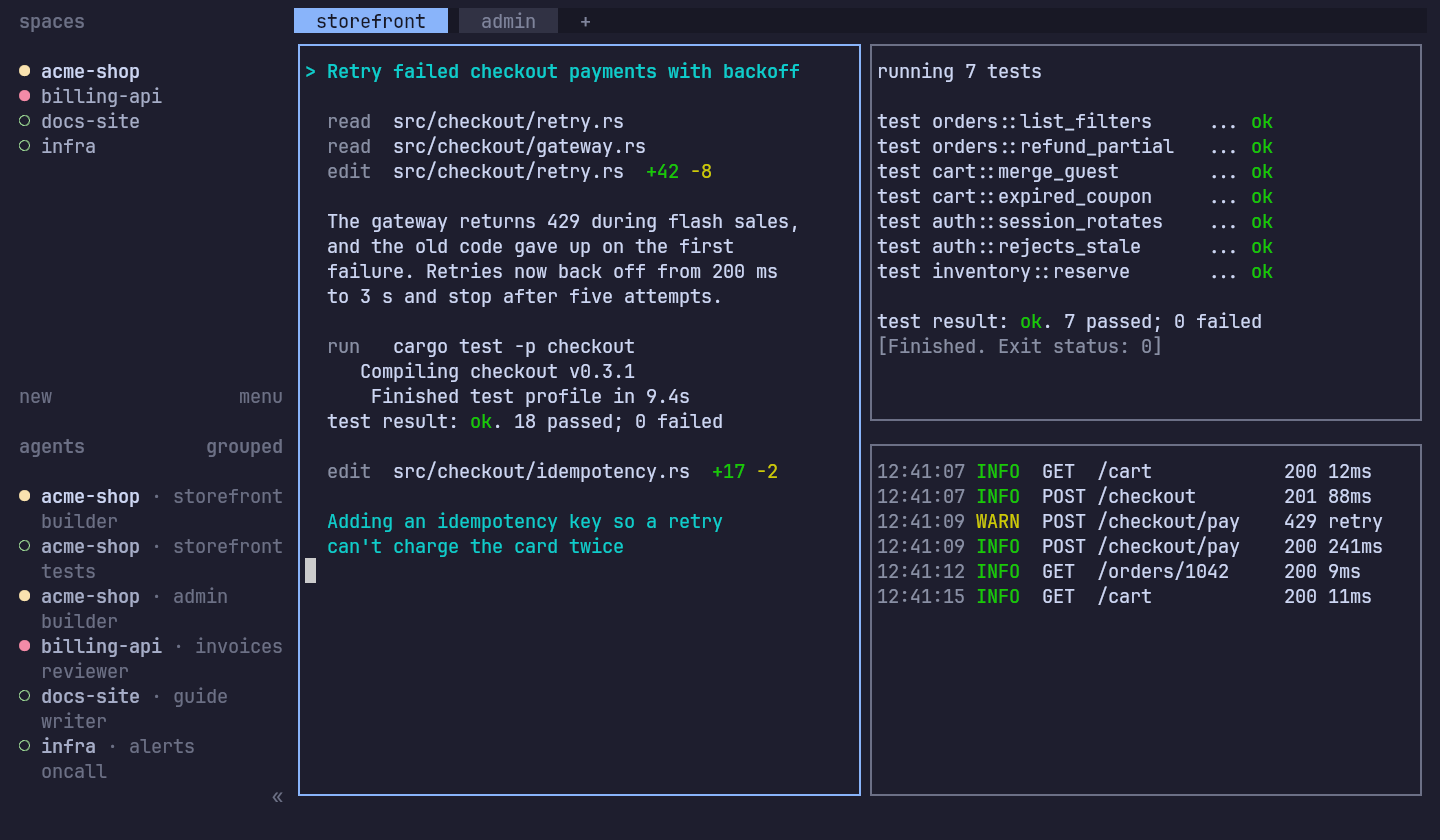
hc-tui interface showing a sidebar with spaces and agents on the left and three split terminal panes on the right
Sidebar of spaces and agents beside a multi-pane workspace (storefront tab active).

Built for terminal workflows on top of hc

Every feature stays within a single static binary talking directly to local or remote hc cores, sharing spaces and tabs with your existing Herdr setup.

Sidebar and agent states

A live sidebar lists your spaces and running agents across local and remote machines. Each agent reports whether it is blocked, done, working, waiting, or idle, and spaces and tabs come from the same read-only herdr-app document the desktop app uses.

  • Machines added with hc machine add appear grouped in the same sidebar.
  • Default agent sort orders by priority; set agent_panel_sort = "spaces" for space order.
  • Sidebar width, split, sort toggle, and collapses persist per endpoint.
agents · priority order sidebar states
  • blocked Needs input or approval
  • done Unseen completed turn
  • working Active turn in progress
  • ◌ waiting Quiet turn; background work still runs
  • idle Ready for the next prompt
  • unknown Unrecognized reported status word
Priority: blocked > done > working > waiting > idle > unknown
Tabs, splits and zoom

Create tabs (Ctrl+B c), split panes right or down (Ctrl+B v, Ctrl+B -), resize splits, and zoom a single pane full-frame (Ctrl+B z). Press Ctrl+G to lock keyboard shortcuts so every key goes straight to the program.

With a few optional lines in your Herdr config, Alt+Left/Alt+Right step across tabs and Alt+Up/Alt+Down jump through agents across tabs, workspaces, and machines without the prefix.

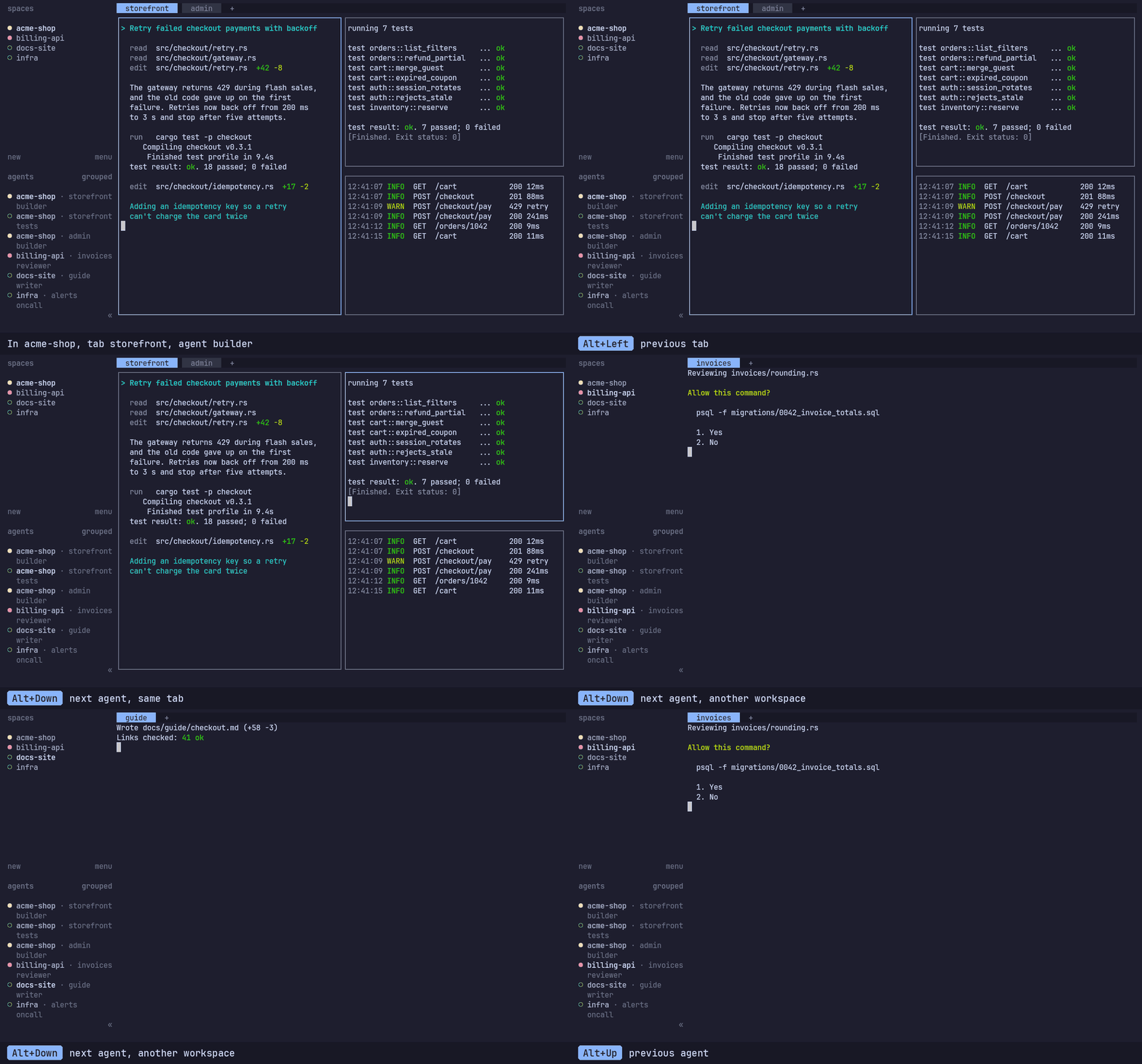
Animation of switching tabs with Alt+Left and Alt+Right and jumping between agents across workspaces with Alt+Up and Alt+Down
Prefix-free switching across tabs and agents with optional Alt+arrow bindings.

Mouse selection with OSC 52

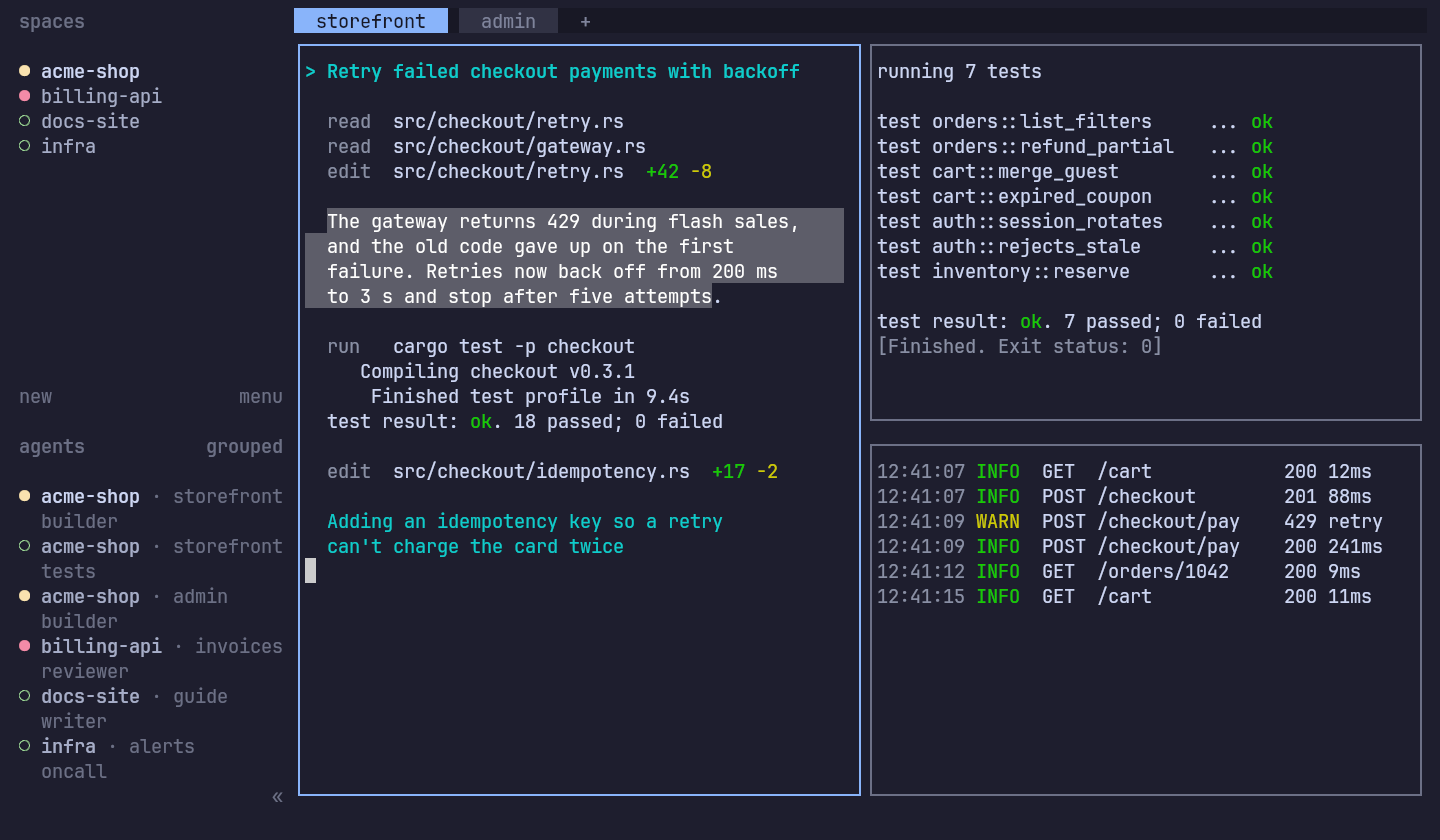
Drag with the mouse in any pane or floating popup to select text; letting go copies it straight to your clipboard over OSC 52 (your outer terminal needs OSC 52 enabled).

Prefer the keyboard? Ctrl+B [ opens vi-style copy mode across the visible screen and scrollback, with / and ? search, visual line selection, and y to yank via OSC 52.

Highlighted text selected with the mouse inside an hc-tui terminal pane
Mouse selection copies to your local clipboard on release through OSC 52.

Herdr config carry-over

Your existing ~/.config/herdr/config.toml works right away — prefix, custom key bindings, theme, sidebar layout, and pane chrome carry over automatically. Press Ctrl+B Shift+R to reload config changes live.

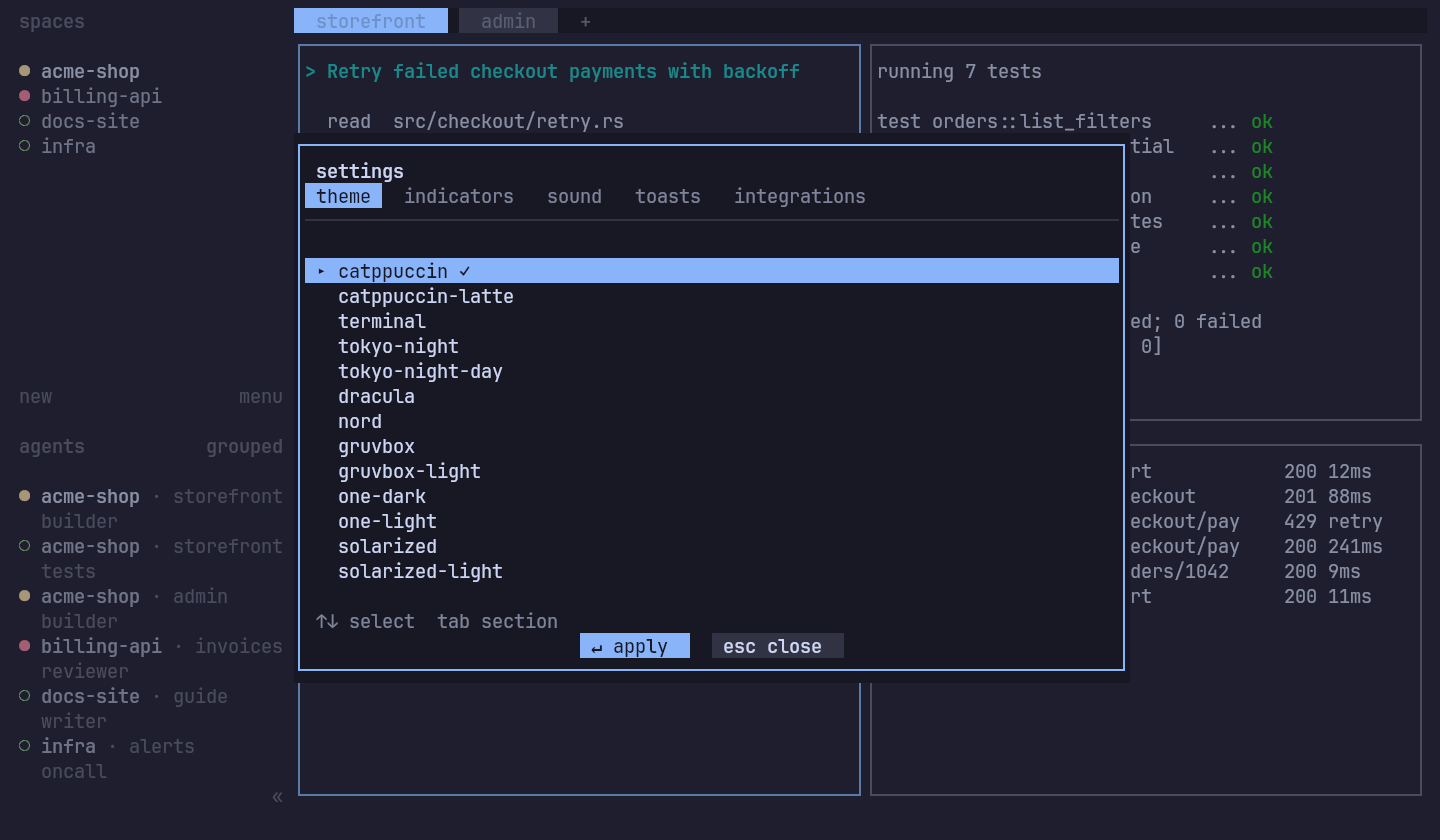
Changes made inside Settings (Ctrl+B s — theme, status indicators, sound, and toast delivery) save cleanly back to your Herdr config without touching the rest of the file.

hc-tui Settings overlay listing built-in dark and light themes including Catppuccin, Tokyo Night, Dracula, Nord, Gruvbox, One Dark, and Solarized
Settings overlay (Ctrl+B s) carrying over Herdr themes and preferences.

Local or SSH, with persistent terminals

Run locally or attach over plain SSH with hc-tui --remote host-a --session work. Logins use your existing ~/.ssh/config, keys, SSH agent, and ProxyJump — hc-tui never prompts for or stores passwords.

Streams share one OpenSSH control socket per host (persisting 10 minutes after close). Detach with Ctrl+B q or drop off the network and your terminals stay running on the server; clients attached to the same core share tabs and splits.

Image paste over SSH

Over SSH — or into a remote machine pane (machine/tN) — Ctrl+V reads an image or copied image file from your local clipboard, uploads it to the agent's machine via terminal.put (or chunked put_chunks on hc 0.1.21+), and passes the uploaded path to the program.

Ctrl+Shift+V stays bracketed text paste, and plain local endpoints leave Ctrl+V untouched. Recognizes PNG, JPEG, GIF, WebP, and BMP up to 8 MB; uses wl-paste (Wayland) or xclip (X11) on Linux.

The floating terminal

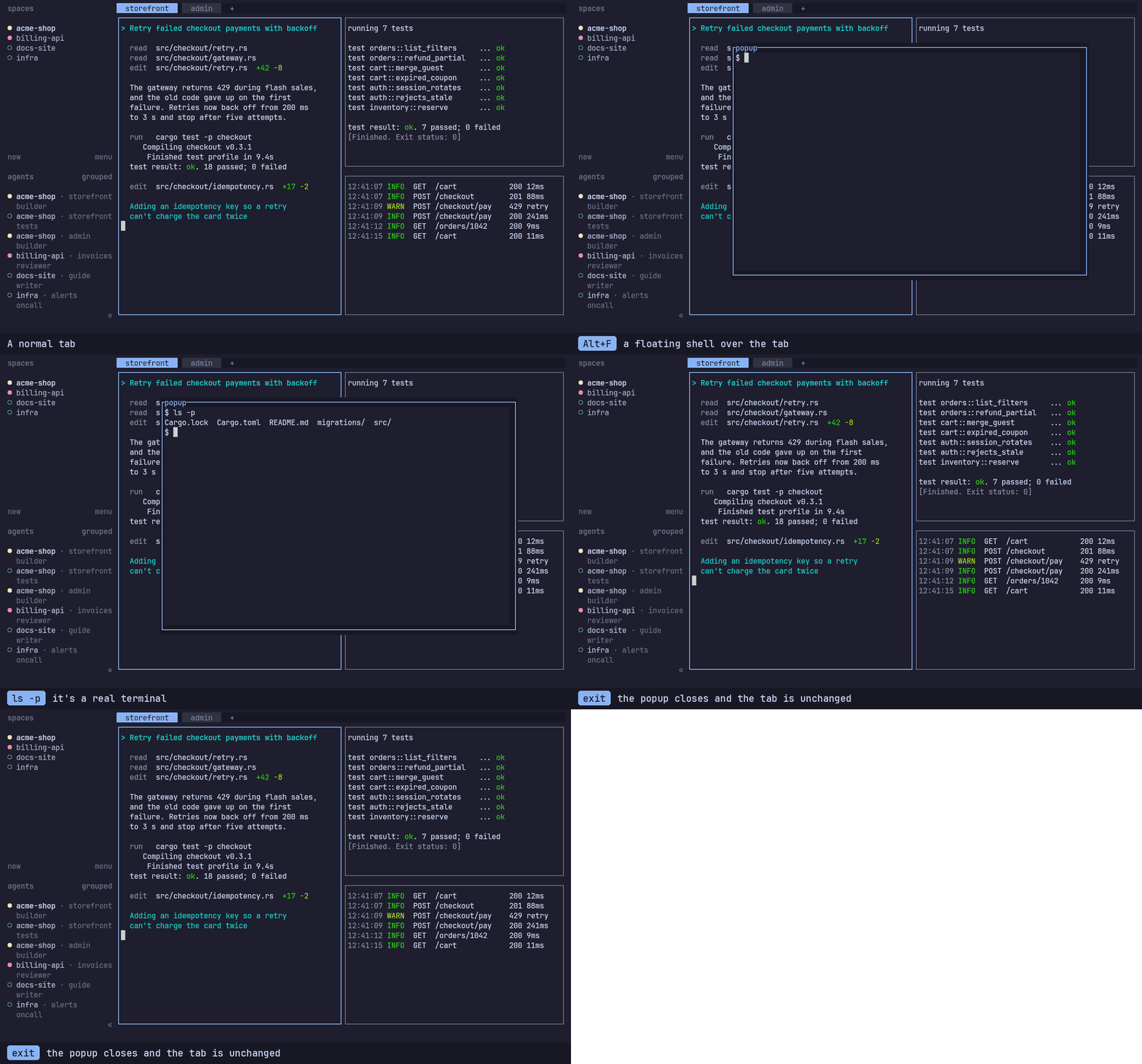
Bind a key such as Alt+F to a type = "popup" shell in your Herdr config for a persistent floating terminal per tab. It starts in that tab's project directory, hides when you toggle it or switch tabs and agents, and keeps running in the background until its program exits or the tab closes.

Persistent floats draw a dimmed backdrop, drop shadow, and accent frame; set persistent = false when you want a one-shot popup instead. See docs/keys.md for the config snippet.

Animation of toggling a persistent floating shell overlay over a workspace tab with Alt+F
A persistent per-tab shell popup opened and hidden with Alt+F.

Update check and --upgrade

On startup, hc-tui runs one asynchronous, 5-second-bounded HEAD request to GitHub releases/latest, cached for 24 hours and silent on failure. Opt out with update.version_check = false or HC_TUI_NO_UPDATE_CHECK=1.

Run hc-tui --upgrade or press Ctrl+B u (or click the ↑v… badge) to read release notes, update locally, and restart in place. Binaries managed by mise, Homebrew, Nix, cargo, or dev builds are refused safely with the package manager's own command printed instead.

The ◌ waiting state

When an agent's own turn is quiet (Idle) while background work it started is still running, the sidebar overlays ◌ waiting — ranked below working and above idle. It never mutates core state, seen state, or notifications.

Process tree check (machine.exec)
Detects live -c shells (sh, bash, zsh, dash, fish, ksh) across two consecutive listings to ignore transient hooks.
Session file check (file.read)
For Claude Code, reads only pid and status = "shell" from its session file to confirm running background tasks.

Single binary, verified before install

The installer fetches the archive for your OS and architecture, verifies its SHA-256 against the release's sha256sums.txt, installs into ~/.local/bin without sudo, and runs the official hc installer if hc isn't already present.

Latest release
curl -fsSL https://followcat.github.io/hc-tui/install.sh | sh

Also attached to every GitHub release at releases/latest/download/install.sh.

Pin a specific version
curl -fsSL https://followcat.github.io/hc-tui/install.sh \
  | HC_TUI_VERSION=v0.1.15 sh
HC_TUI_VERSION
Pin a release tag (v0.1.15 or 0.1.15); latest by default.
HC_TUI_INSTALL_DIR
Target directory (default ~/.local/bin).
HC_TUI_SKIP_CORE=1
Skip installing the official hc core.
Upgrade an existing install
hc-tui --upgrade

Upgrades the directory of the running binary (or set HC_TUI_VERSION=v<version> to move to a specific release). Inside hc-tui, Ctrl+B u shows release notes, updates locally, and restarts in place.

Package managers, uninstall, and source builds

Package-managed installs are refused safely with the right command printed: mise upgrade --bump github:followcat/hc-tui, brew upgrade hc-tui, Nix, or cargo. Uninstall is rm ~/.local/bin/hc-tui.

Checksum verification uses sha256sum, shasum, or openssl. Building from source needs stable Rust (edition 2024) and Zig 0.16.0 — see Build from source and docs/install.md.

Prebuilt release platforms
Platform Archive target Notes
Linux x86_64 x86_64-unknown-linux-musl Static binary
Linux aarch64 aarch64-unknown-linux-musl Static binary
macOS arm64 aarch64-apple-darwin Passes CI; not yet tested on a real Mac
macOS Intel x86_64-apple-darwin Passes CI; not yet tested on a real Mac

First commands and essential keys

hc-tui starts a local hc core automatically when nothing answers on the session socket. Detach with Ctrl+B q and your core and terminals keep running.

hc-tui                                  # default local session
hc-tui --session work
hc-tui --remote host-a --session work   # attach over SSH
Default prefix: Ctrl+B
Keys Action
Ctrl+B w Navigate workspaces
Ctrl+B c New tab
Ctrl+B v, Ctrl+B - Split right, split down
Ctrl+B h/j/k/l Move focus between panes
Ctrl+B z Zoom or unzoom pane
Ctrl+B b Show or hide sidebar
Ctrl+B [ Copy mode (vi scrollback & yank)
Ctrl+B s Open Settings
Ctrl+B u Release notes & in-client update
Ctrl+B ? Search active key bindings
Ctrl+B q Detach (hc keeps running)
Ctrl+G Lock / unlock keyboard shortcuts

Custom bindings from ~/.config/herdr/config.toml override these defaults. For copy mode, resize mode, scrolling, and optional Alt shortcuts (Alt+Left/Right, Alt+Up/Down, Alt+F), read the full Keys guide on GitHub.

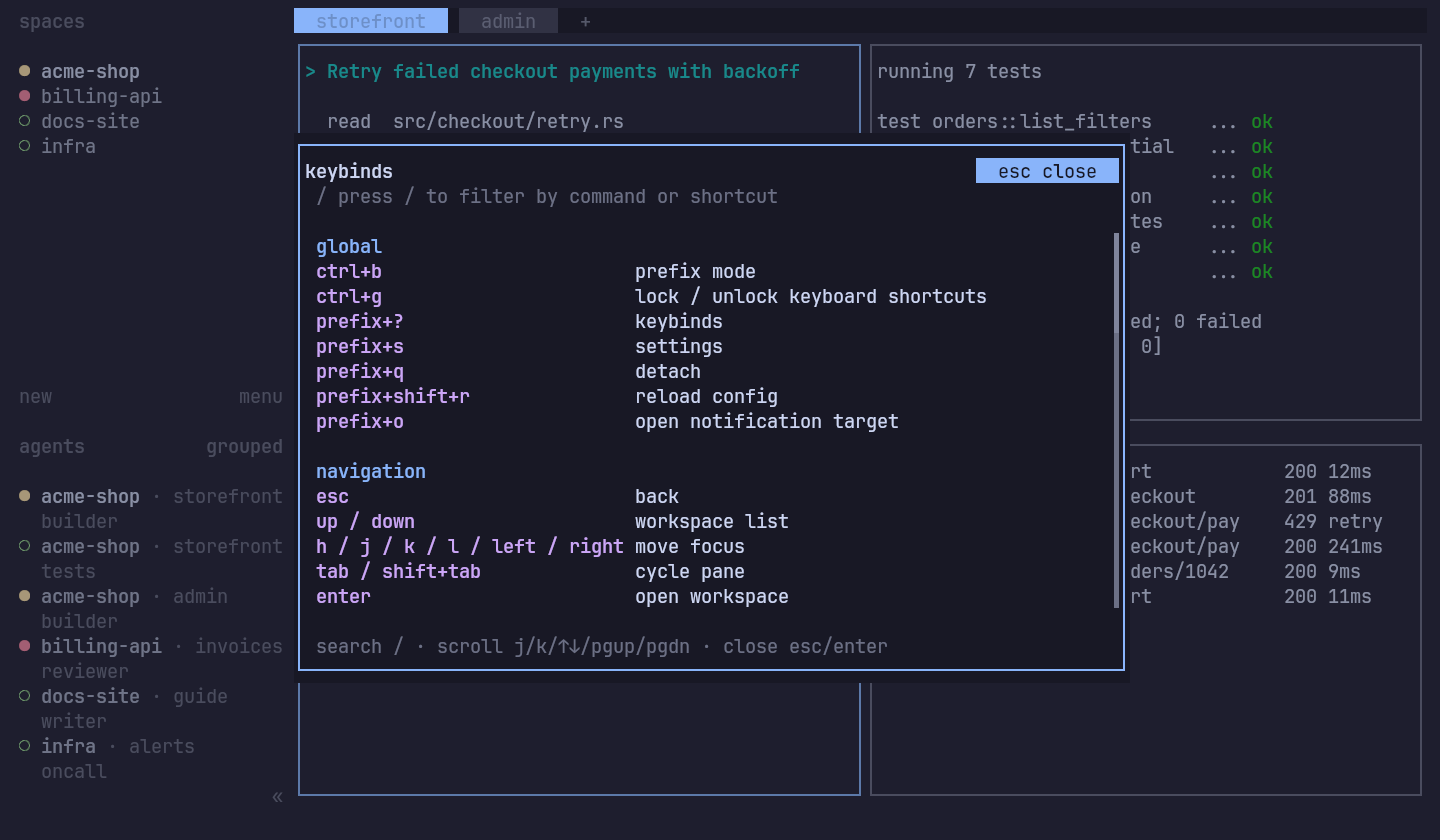
Searchable key bindings overlay in hc-tui opened with Ctrl+B ?
Press Ctrl+B ? anytime to search the live binding table.

Works with official hc and the followcat fork

Capabilities are discovered per core from hello.result.features and field presence, so one sidebar can mix official and fork machines cleanly. Missing capabilities stay off without errors or retry loops.

Tested against 0.1.21

Built and tested in CI against pinned official hc 0.1.21 and the followcat/herdr-core fork 0.1.21-followcat.1.

Older official cores: 0.1.18+

Official hc releases from 0.1.18 onward keep working; features absent on an older core gracefully fall back or stay off.

Capability Official hc Fork hc On official hc
Protocol generation 1 (framed & plain) yes yes Identical behaviour.
Chunked image paste (put_chunks) 0.1.21+ advertised Older cores fall back to a single terminal.put.
Agent status OSC 7501 screen + 7501 Agents show a status only when they emit OSC 7501 themselves.
Git repo/branch & OS hostname absent advertised Workspace uses cwd folder name; machine uses its hello name.
Completion ordinals (record_activity) absent advertised Falls back to per-terminal turn and shared herdr.seen label.

Full capability matrix in docs/compatibility.md, and the fork's client contract in docs/fork-features.md.